Main Screen
After starting AIRS from your Android launcher, you are presented with the main screen of the AIRS activity.

AIRS uses a tabbed view. The tabs at the top row give you the following options:
- Start a local sensing session
- Start a remote sensing session
- Configure the Settings of AIRS
- Access this very online manual through an embedded web page view
Pressing the Android Menu key brings up the following screen:
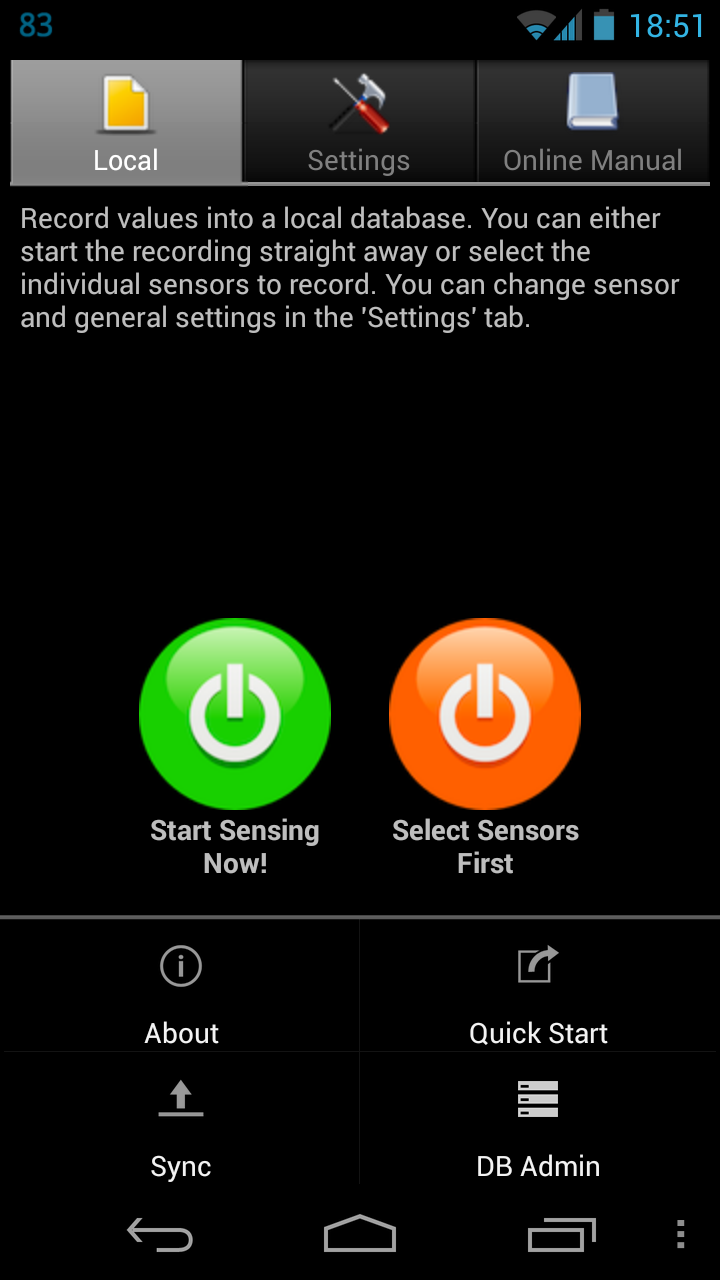
The options menu allows for:
- showing the license and copyright information with the About selection
- generating a shortcut on the launcher homescreen for quick launch of a local recording session
- synchronising local AIRS recordings
- opening the database administration dialog. After selection, a dialog will open with three buttons:
- Backup: saving your current local recording database to the AIRS data partition (usually under /sdcard/Android/data/com.airs/files
- Restore: restores any previous backup file, replacing the current database (cannot be undone!)
- Index: creates an index over the timestamp entry in the local recording database. This speeds up any visualisations tremendously but will increase the size of the database by about 60%. The index needs only be created once and cannot be removed after created!